Home >
National ID QR Code Verification Guide (2026): How PhilSys Check Works
For decades, checking a government ID in the Philippines relied entirely on human eyesight. A bank teller or a security guard would look at the plastic card, squint at the tiny photograph, tilt the card to see if a hologram caught the light, and make a subjective judgment call on whether the ID was genuine or a sophisticated fake manufactured in Recto. This analog method of verification left massive vulnerabilities for identity theft and financial fraud.
The Philippine Identification System (PhilSys) fundamentally changed this paradigm. While the front of the National ID features your photograph and demographic details, the true power and security of the card reside on the back: The QR Code.
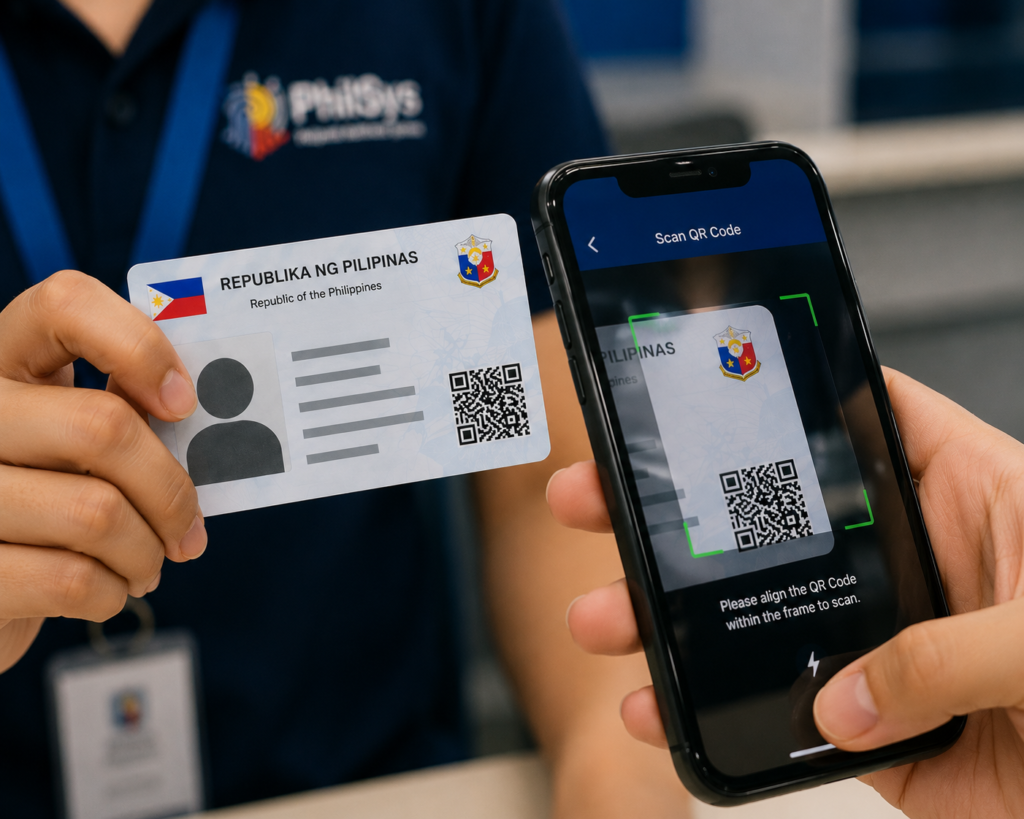
The PhilSys National ID does not rely on easily forged holograms. Instead, it utilizes asymmetric cryptography embedded within that QR code. By scanning the code using the official government verification tool—known as PhilSys Check—any relying party can instantly and irrefutably verify if the ID is genuine, and if the person holding it is the true owner.
In this comprehensive 2026 guide, we will break down exactly how National ID QR code verification works. We will explain why your standard smartphone camera app will fail to read the code, provide a step-by-step tutorial on how to use the official PhilSys Check portal, and explain what to do if a scan fails or returns mismatched data.
Key Takeaways
- Standard Scanners Will Fail: The QR code on the National ID is not a link to a website. It is an encrypted data file. If you scan it with a normal QR scanner app or a basic camera app, you will just see a jumble of random characters.
- PhilSys Check is Mandatory: To decrypt and verify the QR code, you must use the official, browser-based Philippine Statistics Authority (PSA) tool located at verify.philsys.gov.ph.
- Offline Verification is Possible: Because the demographic data (name, birthdate, face data) is heavily compressed and stored directly inside the QR code pattern itself, the PhilSys Check system can verify the ID’s authenticity even if the scanner loses internet connection mid-scan.
- It Applies to the ePhilID: The digital/printable ePhilID features the exact same cryptographic QR code as the physical PVC card and is verified using the exact same process.
- No Data is Stored: For privacy protection, the PhilSys Check portal does not save, record, or store the data it scans. It simply displays it on the screen for the relying party to compare, and then wipes it.
Overview: The Cryptography Behind the QR Code
To appreciate how foolproof the PhilSys verification system is, you must understand what that black-and-white square actually contains.
When you sit down at a restaurant and scan a QR code on the table, it usually just contains a simple text string—a URL (like www.restaurantmenu.com). Your phone reads the text and opens the browser.
The PhilSys QR code operates on an entirely different level of security. It does not contain a web link. Instead, it contains a highly compressed, digitally signed payload of your demographic information (your full name, sex, date of birth, blood type) and, in some advanced formats, a compressed biometric template.
When the Bangko Sentral ng Pilipinas (BSP) prints your National ID, they use the government’s private cryptographic key to “lock” or sign the data inside the QR code. Only the official PhilSys Check website holds the corresponding public key required to “unlock” and read the data. If a counterfeiter tries to print a fake ID with a fake QR code, the PhilSys Check portal will instantly recognize that it was not signed by the BSP’s private key, and the verification will fail with a bright red warning screen.
Eligibility: Who is Allowed to Verify an ID?
In the language of the Philippine Identification System Act, anyone who asks to see your ID to facilitate a transaction is known as a Relying Party.
The beauty of the PhilSys Check system is that it is entirely open to the public. There is no paywall, and you do not need to register an enterprise account to use it.
- Government Agencies: The GSIS, SSS, PhilHealth, and DFA use the verification system to process benefits and passports.
- Financial Institutions: Banks, remittance centers (like Palawan Express or Cebuana Lhuillier), and e-wallet providers (like GCash and Maya) use it to comply with strict Anti-Money Laundering (AML) KYC regulations.
- Private Businesses: Security guards at corporate buildings, HR departments verifying new hires, or even a landlord verifying a new tenant can use the system.
- Private Citizens: If you are buying a second-hand car and want to verify the seller’s identity, you are completely eligible to pull out your smartphone and scan their National ID.
Requirements: What You Need to Scan
Verifying a National ID does not require specialized, expensive hardware (unlike the old smartcard readers). You only need everyday consumer technology.
- A Device with a Camera: A smartphone (iOS or Android), a tablet, or a laptop/desktop computer with a functioning webcam. The camera must have decent autofocus; a highly blurred lens will fail to read the dense QR pattern.
- An Internet Browser: Chrome, Safari, Firefox, or Edge. You do not need to download a standalone app from the App Store or Google Play.
- Initial Internet Connection: You need an internet connection to load the
verify.philsys.gov.phwebsite. Once the website is fully loaded into your browser’s cache, it can actually perform the cryptographic verification entirely offline. - The Physical ID: The physical PVC National ID or the printed paper ePhilID presented by the cardholder.
Step-by-Step Process: How to Use PhilSys Check
If you are a Relying Party (e.g., a bank teller or a security guard), follow these exact steps to verify the identity of the person standing in front of you.
Step 1: Access the Portal
Open the web browser on your smartphone or computer and navigate to the official PSA portal: verify.philsys.gov.ph. (Always ensure you type the URL correctly to avoid fake phishing websites designed to mimic the portal).
Step 2: Grant Camera Permissions
When the website loads, you will see a button that says “Click to Scan QR Code.” When you click it, your browser will trigger a pop-up asking for permission to access your device’s camera. You must click “Allow.”
Step 3: Scan the QR Code
The camera viewfinder will appear on your screen. Hold the National ID (or ePhilID) steady, and align the QR code on the back of the card within the square on your screen. Ensure there is no severe glare from overhead lights reflecting off the plastic card.
Step 4: Interpret the Results
The verification is nearly instantaneous. You will receive one of three responses:
- Successful Verification (Green): The screen will flash green and display the message “PhilSys QR Code Successfully Verified.” Crucially, the screen will now display the cardholder’s Full Name, Sex, Date of Birth, and a digital photograph.
- Mismatch/Altered Data (Yellow/Red): If the scanner successfully reads a code but the cryptographic signature is broken, it means the ID has been tampered with.
- Invalid QR Code (Red): The screen flashes red and says “Invalid QR Code.” This means the ID is completely fake and was not generated by the Philippine Statistics Authority.
Step 5: The Human Match (Crucial)
A successful Green scan is only half the battle. You, as the relying party, must now look at the data displayed on your smartphone screen and physically compare it to:
1) The printed text on the front of the physical ID card.
2) The physical face of the person standing in front of you.
If the smartphone screen shows a photo of a 60-year-old man, but a 20-year-old woman is handing you the card, the card is stolen. The QR code never lies.
Processing Time: How Fast is Verification?
The actual cryptographic decryption takes milliseconds. Assuming your camera is clean and the lighting is adequate, the moment the QR code is in focus, the screen will flash green or red.
Because the demographic data is stored locally inside the QR code pattern itself (rather than the scanner having to ping a remote server in Manila to download the data), the verification speed is not bottlenecked by slow internet connections. Once the webpage is loaded, the process is instantaneous, making it highly efficient for fast-paced environments like supermarket checkouts or bank queues.
Common Mistakes that Cause Verification Failure
If you are trying to verify a legitimate ID and the system keeps failing, it is usually due to user error or environmental factors rather than a fake card.
- Using the Wrong Scanner: As previously mentioned, if you open your iPhone camera or a generic “QR Reader” app downloaded from the App Store and point it at the National ID, it will fail. It will likely output a string of random characters like
eyJhbGciOiJSUzI1NiIsIm.... You must use the browser at verify.philsys.gov.ph. - Camera Glare: The PVC material of the physical National ID is highly reflective. If you are scanning the card directly under a bright fluorescent light, the camera will see a massive white glare instead of the black-and-white QR pattern. Tilt the card slightly to remove the glare.
- Damaged QR Code: If the cardholder has severely scratched the back of their PVC card, or if the printed ePhilID has been folded, crumpled, or smeared with water directly across the QR code, the camera will not be able to read the pattern. If the QR code is permanently destroyed, the owner must apply to replace the damaged National ID.
- Poor Lighting: Trying to scan the ID in a dark nightclub or a dimly lit hallway will cause the smartphone camera to fail to focus on the intricate QR pattern.
Frequently Asked Questions
Is the PhilSys Check verification safe? Does it store my data?
Yes, it is highly secure by design. The PhilSys Check portal operates on a strict “Zero Retention” policy in compliance with the Data Privacy Act of 2012. When a security guard scans your ID, your data is temporarily displayed on their screen for verification purposes. The moment they close the browser tab or click “Scan Another,” your data is permanently wiped from their device’s memory. It is never saved to their camera roll or uploaded to a secondary server.
Can I use PhilSys Check without an internet connection?
Yes, but with a caveat. You need an internet connection initially to load the website and download the public cryptographic keys. However, once the verify.philsys.gov.ph page is fully loaded and open on your device, you can walk into a dead zone with zero signal and continue scanning IDs flawlessly, because the data is embedded in the QR code itself.
Why did the bank refuse my ePhilID even though the QR code scanned successfully?
By law, all government agencies and private institutions (including banks) are strictly mandated to accept the printed ePhilID as valid proof of identity, provided the QR code can be successfully verified via PhilSys Check. If a bank teller refuses your verified ePhilID, they are violating the law and can be reported to the Bangko Sentral ng Pilipinas (BSP) or the PSA.
Does the QR code contain my fingerprint data?
The standard QR code printed on the back of the physical ID primarily contains your demographic data and a low-resolution digital facial photograph. It does not contain your raw fingerprint files. Advanced biometric verification (where you actually scan your thumb at a bank terminal) requires integration with the separate PhilSys API infrastructure, which is only accessible to authorized institutional partners.
Official Resources
To perform a verification, you must rely exclusively on the official government portal. Do not use third-party applications.
- PhilSys Check – Official QR Verification Portal
- Philippine Statistics Authority – PhilSys Main Website
- Bangko Sentral ng Pilipinas (BSP)
Conclusion
The National ID QR Code Verification system represents a monumental shift in how identity is authenticated in the Philippines. By moving away from subjective, visual inspections of easily forged plastic cards and embracing robust, asymmetric cryptographic verification, the PhilSys Check system provides an unprecedented level of security for both citizens and relying parties.
Whether you are a bank manager approving a multi-million peso loan, a security guard verifying a visitor, or a citizen conducting a private transaction, utilizing the official verify.philsys.gov.ph portal ensures that the person standing in front of you is exactly who they claim to be.
Remember that the physical card is only half of the security equation. A successful verification always requires the human element: scanning the QR code, reading the decrypted data on your smartphone screen, and physically confirming that the photograph and demographic details match the physical ID and the human being presenting it. By making this simple digital scan a standard habit, the Philippines can effectively eradicate identity fraud.
Disclaimer
PublicServicesDesk.com is an independent informational website and is not affiliated with, endorsed by, or operated by the Philippine Statistics Authority (PSA), the Bangko Sentral ng Pilipinas (BSP), or the Philippine Government. Information is provided for general educational purposes only and may change over time. Always verify important details through official Philippine Government websites before making decisions or submitting applications.